Changelog

Follow new updates and improvements to Drawbridge.

February 3rd, 2026

New

Improved

Fixed

Quick hint customizations, labelling maintenance items as safety issues, and more!

Game Master Page Updates

GM Volume Control

GMs can now control in-game volume through the GM page

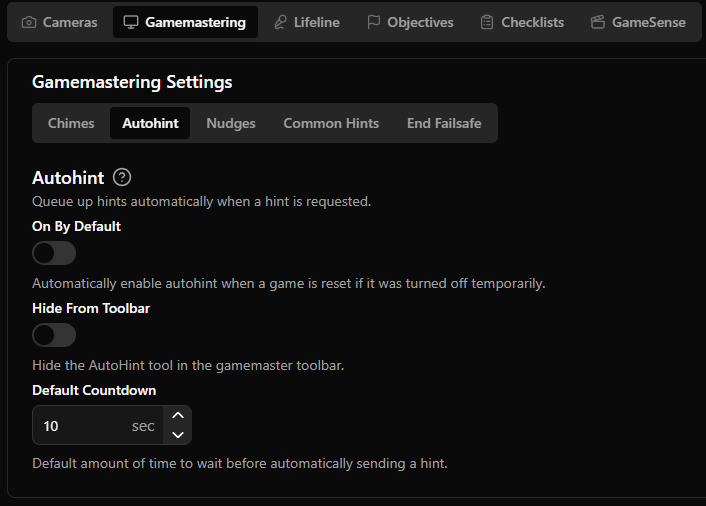
Hint Customization: Pin/Skip hints for Autohint, Click to Edit

Game Masters can now click on a hint to open the custom hint box with that hint inside. They can then edit that hint and send it or close the custom hint box and send it later.

They can also Pin or Skip hints for AutoHint by hovering over the name of the hint. When hovered over, two symbols will appear, a pin and skip.

  • Pinning a hint will move it to the top of the objective and Autohint will select that hint to send next.

  • Skipping a hint means that hint (and the ones before it) will not be selected by Autohint, it will skip down to the first hint below whichever one was skipped.

If there is text in the custom hint box, that will always be selected first.

Overview Changes

Severity and Safety Warnings on Handyman Items

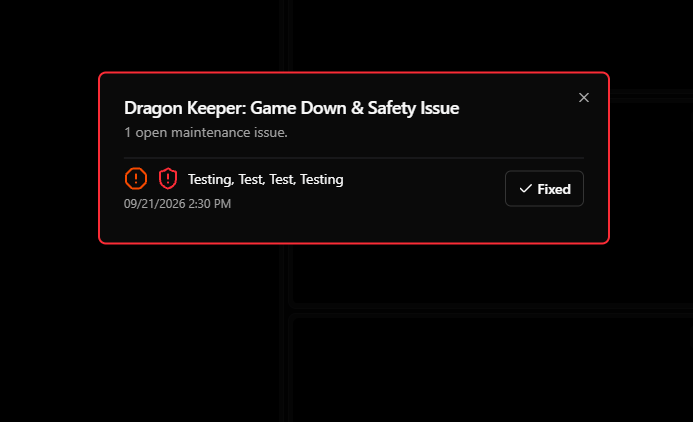
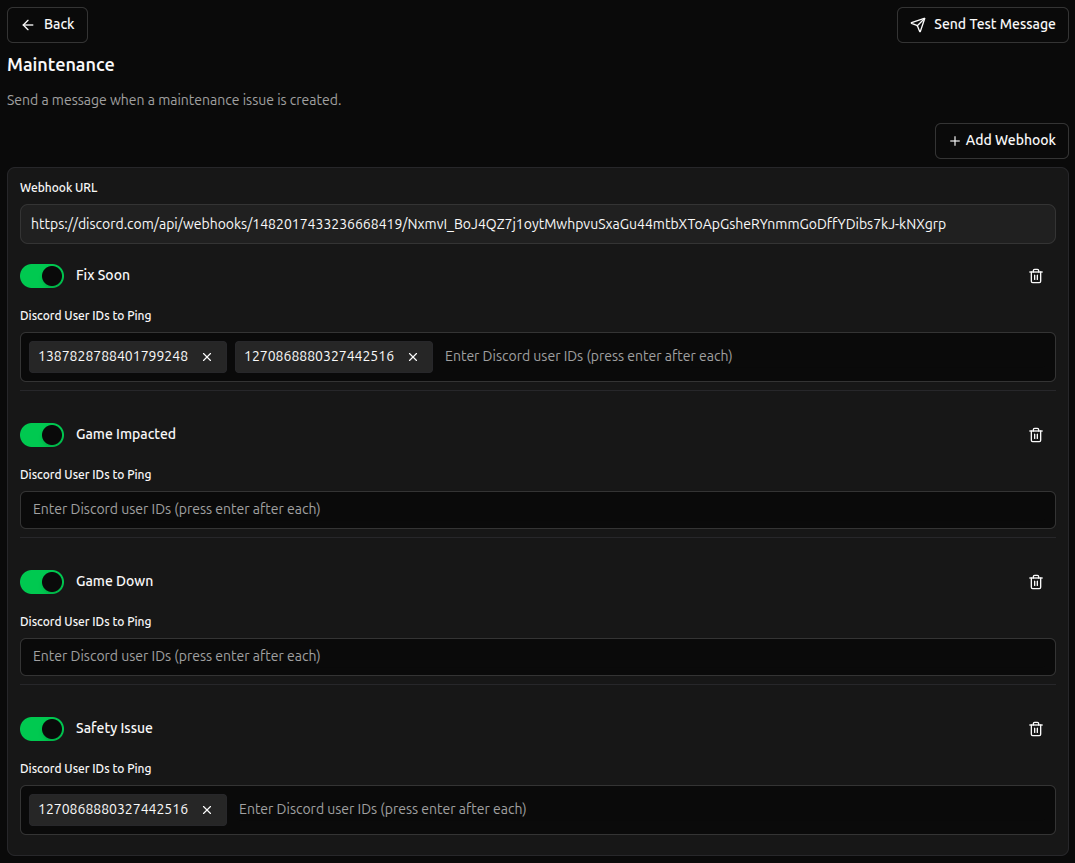
Handyman items can now be flagged as a safety issue (the red shield), and the impact to the game can be specified (anywhere from Fix Soon to Game Down). The Overview dropdown will bring safety issues to the top and then rank by severity level.

Forecasted Overview

A third option in the Staffing Hours/Game metric. Forecasted Hours will take historical data from the last 4 weeks and apply it to today. So on a Monday, it would take data from the last 4 Mondays and apply it to todays staffing to let you know what to expect.

This menu will also highlight what employees should be sent home based on hours worked vs scheduled. It will highlight the employee that has worked a higher percentage of hours as the one who should be sent home. This is designed to help spread available hours more fairly across staff instead of the same person being told not to come in over and over.

  • Example: Employee One is scheduled for 20 hours and has only worked 5 (5/20). Employee Two is scheduled for 30 hours and has worked 15 (15/30). Employee Two would be highlighted to be sent home because they’ve worked 50% of their scheduled hours and Employee One has only worked 25% of their scheduled hours.

If there’s not a large difference, both employees would be highlighted since someone still should be sent home.

Goals on the Overview Page

Any active goals you set up will appear on the overview page. If you have multiple active at once, you can click to scroll between them.

Access Pin for Settings

You can set an access pin to restrict access to all settings under General Settings → Management. This can be characters or numbers.

Once you log in with the pin, it will remember you until the page is refreshed. So if you’re logging in on a shared device, make sure to refresh Drawbridge before handing it off to others unless you want them to have access.

The password is applied globally, so make sure to share it with that anyone who needs to know it.

Show More Lobby Cameras

You can now show additional cameras at once on the lobby cameras page (6, 8, 10, 12, 24), allowing you to view your entire venue at once!

Game Control

Drawbridge now supports a variety of devices and game triggers for running games!

Display Media

  • Briefing, Running, Win, Loss, and Idle videos, images, and audio

  • Hint Chime

  • Custom audios to play via game triggers

Devices

  • PLC

  • Enttec DMX Pro (USB)

  • sACN DMX (Network)

  • MQTT

  • Tuya

Triggers

Conditions

  • Game State

  • Device State

  • Game End (Win/Loss)

  • Variable Change

Actions

  • Trigger a Device

  • Wait

  • Request a Hint

  • Close an Objective

  • Change DMX Light Channels

  • Start/Pause/Resume Audio

  • End Game (Win/Loss)

  • Set Variable

  • Reset Game

  • Nested Action (Trigger Another Action)

Miscellaneous

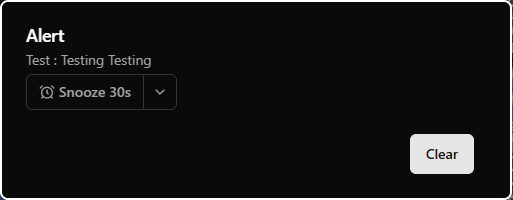
  • Custom alerts will use the color from the most recent alert instead of the first alert

  • Added Kids Mode icon on to hosting popup

  • Add a a “Show All” button for staff selects on shift report

  • Remove filtering of objective times from objective names ( - 55 minutes)

January 13th, 2026

New

Improved

Fixed

Reports directly from Drawbridge, customizable training quizzes, and more!

New Reporting Options

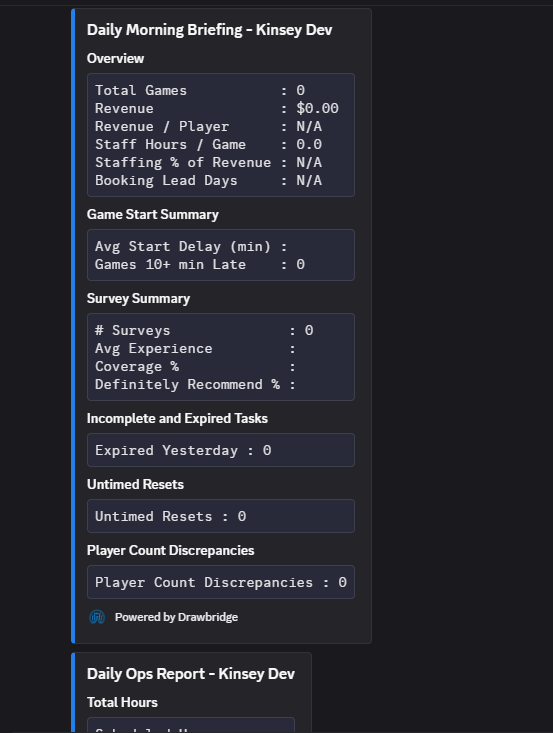
You can now receive configurable Shift, Daily, Weekly, and Monthly reports through Drawbridge. These are similar to Metabase reports, but it’s easy to configure exactly which fields you want to see in each report.

Shift Reports

  • Shift Reports are intended to be filled out and submitted by managers/shift leads at the end of their shifts to provide a summary of how the shift went and anything that needs attention for owners/other shift leads

  • Additional shift context will be automatically added (if enabled)

    • Maintenance tasks created/completed

    • Training completed

    • Daily Tasks completed

    • Revenue

    • Games Played

  • You can customize both opening and closing shifts for which fields to fill out

  • Need to extend them further? Additional custom fields can be added with your own name and description.

  • Shift reports can be saved throughout the shift

Daily, Weekly, and Monthly reports provide an overview

Here’s Configuration Details for all reports and Training Details for shift reports.

Training Tracker Quizzes

The Training Tracker now allows you to build quizzes for modules and assign them to employees. Use multiple choice, true/false, and fill in the blank questions.

How to set up the Training Tracker and build Training Quizzes.

User Log In

Users with timekeeping integration will now have a “Show All” button on the log in dropdown that shows all employees. Enables owners (or others who don’t clock in) to log in and have tasks attributed to them.

New Hosting Questions

Allows “mixed” responses and adds “player relation” question. Player relation can be family, friends, celebration, or business and can assist in marketing - who is coming in and why?

Notes will also be stored in Game Forensics and can be reviewed after the game.

New Integrations

Added full integration with Roller - Point of Sale system

  • Receive bookings, waivers, and basic customer information

  • Link POS items to games and bookings to game sessions

  • Setup information

Schedule Helper

The Schedule Helper will flag any holidays in the next 4 weeks and pull historically scheduled shifts and booking information from that holiday last year. Shows trends in bookings and staff scheduled to inform scheduling for this year.

Small Changes/Bug Fixes:

  • Fixed duplicate hint requests when autohint is off

  • Game log on GM page now has most recent events at the top instead of the bottom

  • Fixed bug with viewing reset checklists in some cases

  • Fixed disabled M3 events sync

  • Fixed Training Tracker employee modules showing unassigned modules

  • Standardized Homebase integration, will show manually added employees as expected

  • Thumbs Up/Thumbs Down for detection feedback will appear as soon as the objective is closed

  • If tracking Groupon usage, the Groupon page (Settings → Point of Sale → Groupon) will show recently used coupons and if they have been redeemed

  • Added more colors to objective alerts

December 8th, 2025

New GameSense features allow you to count players in games and monitor wait times in the lobby! Also late game alerts, AutoNudge, and game master annotation.

Pre-Game New Features

LobbySense

Configure alerts for when customers enter the lobby, track how long customers have been in the lobby, and show live display times on the camera feed.

Setup Info for LobbySense

Lobby Waiting Screen

Upload a video to play in the lobby, a link to waivers, and a logo. These three items will be formatted into a waiting screen that can be launched on a TV in the lobby. The video will play on loop while games in progress are shown on the bottom and upcoming games are shown on the left side. Time of booking is displayed for Upcoming and time remaining is shown for In Progress games.

This screen is intended to keep guests updated on the status of their game, especially those waiting for a group to finish. You can opt to have last names on bookings visible or not visible.

Launches from the 3 bar menu on a TV in the lobby to show guests current game times and upcoming bookings

Setup

Video, logo, and waiver link can be uploaded in Settings → General Settings → Lobby Video.


Start of Game New Features

Late Game Notification

When groups start after their scheduled time, the game start notification on the GM screen will also say how late the group is and ask if they’d like to remove time.

Loss Prevention

Count players in the room during the briefing video compared to the number of players in the booking. Only accessible to games with GameSense enabled.

On the Overview screen, there will be a new column for players. This will either be red or green depending on if the number of people in the room matches the number in the booking. Clicking on the colored number will bring up a screenshot of players and draw a box around each person it has identified.

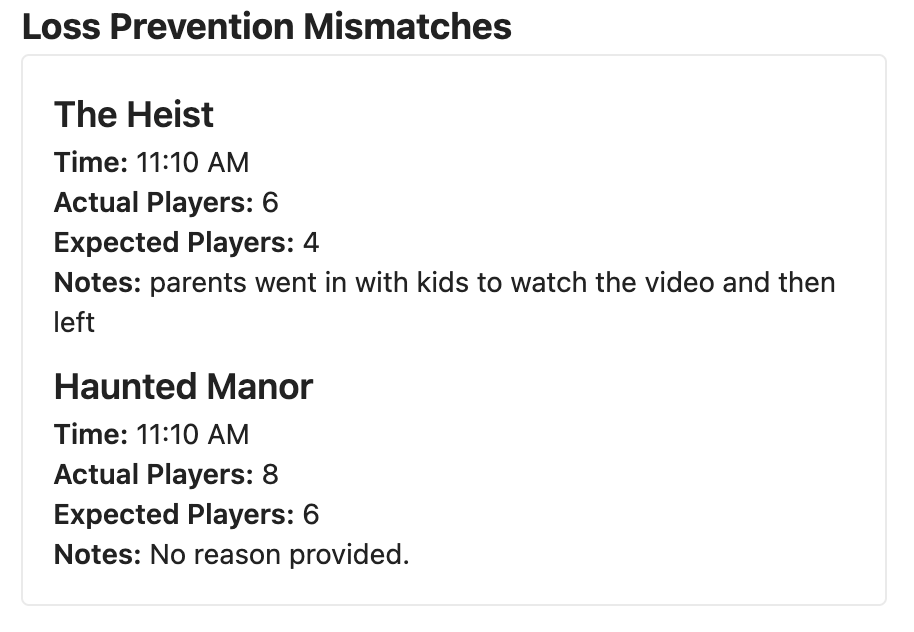
These photos are stored for 7 days in Loss Prevention History under GameSense in story settings. Any mismatches are also pulled in daily reports, so owners can look into them. Photos for this feature are captured during the ‘Prologue’ to a game, when players are watching their intro videos.

Setup Info for Loss Prevention


During Game New Features

AutoNudge

A configurable reminder for Game Masters about sending extra help to a group. This prompt will appear under the ahead/behind timer during a game if a group has spent a while on a puzzle without a hint.

The logic for when a reminder is sent is based on 3 things:

  • How far into the current puzzle the group is

  • How long it’s been since a hint was sent

  • How long it’s been since the GM dismissed a nudge prompt

All 3 sections have default values, but are adjustable if needed.

Setup Info for AutoNudge

Game Master Annotation

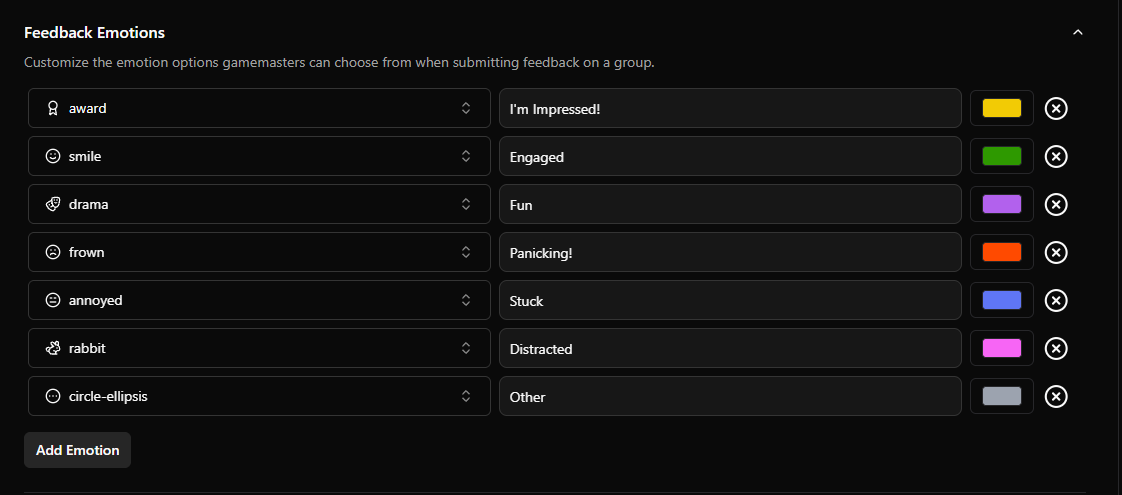
Game Masters can now provide feedback on how groups are performing in games. This will be sent to the assigned host to help provide context when they retrieve the group. This button appears on the bottom bar on the GM page.

When pressed, GMs will see this menu.

GMs can select any of the options and provide commentary. These comments will appear on the attached booking when it is in the ‘Needs Debrief’ column and in game forensics for that session. This can help give the host a highlight from the game to discuss with the group or give them context around a frustrating moment.

Bug Fixes

  • Cameras no longer automute when you open a new tab

  • Hints from Mythric with 0 weight will not be counted as a hint sent

  • Schedule planner shows all days, even if they have no data

  • Time removed showing properly on Overview metrics

  • Deleting pre-game checklist items

  • Resova completion time autofill will match the time on the Countdown screen in game

  • Reviews leaderboard will no longer show deleted employees

  • Include Bookeo promotions as coupon codes to include in rebooking tracking

October 16th, 2025

Customizable Alerts

  • Added customizable host and/or gamemaster alerts when an objective is reached

  • These are configurable in settings for each game under the Objectives tab. Select “Add alert” under either “alert host” or “alert GM” to send a notification when this objective is reached during gameplay.

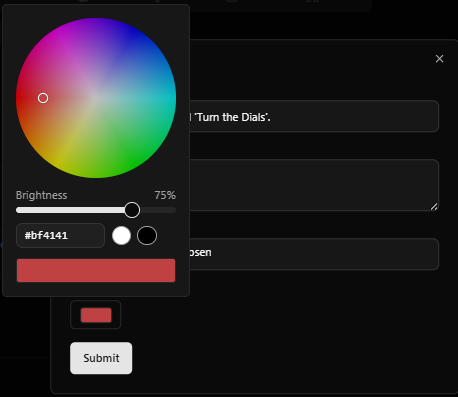
    You can add a title and description and select a color and sound for each alert. You can also add alerts to multiple objectives if needed.

Game Mastering Updates

New Camera Default Settings

  • Sync camera volume across cameras (or across all games)

  • Auto-mute cameras across all games

  • These can be adjusted under Camera Settings

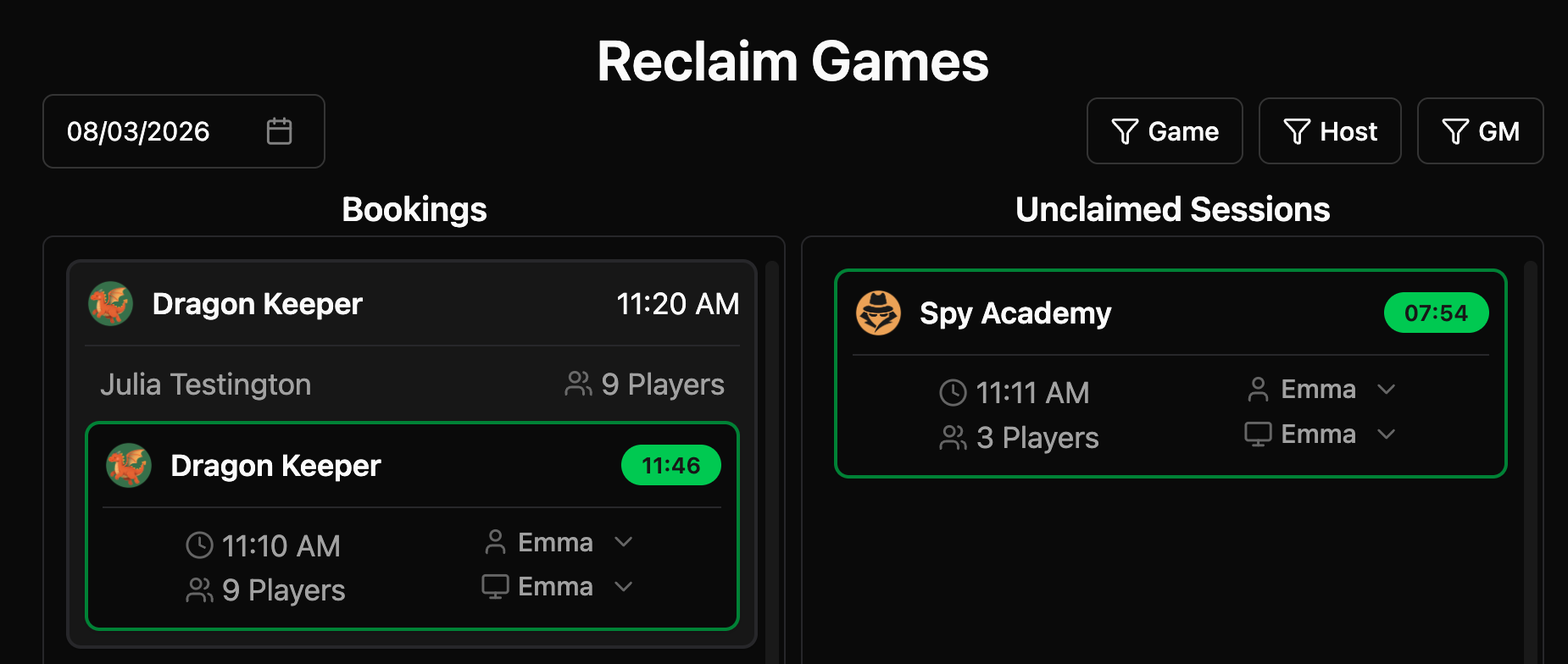
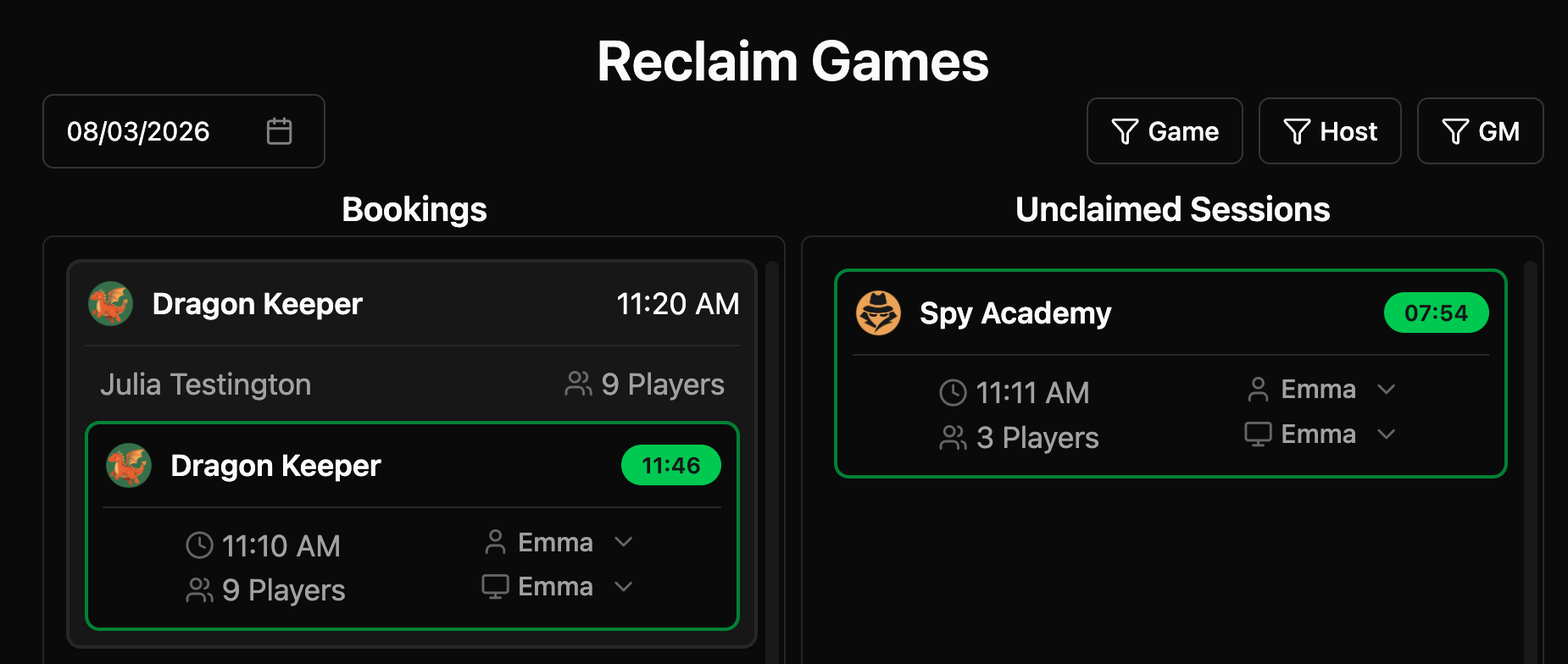
Allowing Game Masters to claim bookings from the GM page for that game

In the column with objectives, there is a new tab called “Upcoming.” Clicking on Upcoming will show the queue of games scheduled for that room and allow a GM to claim them

Optional menu to select why a game is paused

The selected pause reason will be visible in Overview, Games Extended metrics, and Game Forensics for that session

Bottom Toolbar: Clear Hints

We have added a quick action button to clear hints directly onto the bottom GM toolbar. Before, you would need to go into the Custom Hint popup to clear hints

Hint Requests: Embedded Custom Hints

When a hint is requested, the custom hint textbox is included at the bottom in order to send custom hints even faster

Misc Improvements

  • Training Tracker Item URLs

    • Training items can now have URLs attached to them that link to external resources (videos, TalentLMS, etc)

    • These links can be added in Employee Settings under Training

  • Active Goals moved to the top of Venue Operations dashboard for better visibility

  • Hosting page debrief session stats are all in Minutes:Seconds format instead of just seconds

  • Simplified sidebar navigation menu

  • Kids mode icon will appear on hosting controls popup

  • Error popup for mis-configured Google integration

Fixes

  • Reset inventory page on filter/search changes

  • Replace text letter wrapping with word wrapping

  • Clearing hints when using translations

  • Fix a few issues when triggering Mythric 60.5 devices

July 30th, 2025

New

Improved

Fixed

Introducing the Venue Operations Dashboard! A place to catch up on anything happening in your venue that is not directly related to customers. Can be accessed from the top navigation bar or a tab on the overview screen.

  • Allows you to run test games if needed. Condenses inventory, daily tasks, maintenance issues, reviews, upcoming events, goals, and training into one place. They’ll all be accessibly from the sidebar menu as well.

  • Anything proactive that you do in the venue to make sure things are running smoothly can be seen here. Perfect for shifts during the week with fewer games.

  • If there are any sections of this page that are blank, your Drawbridge may not be completely set up. Check out the progress page in settings to make sure everything is configured!

Game Mastering:

Log - you can now toggle between objectives and the game log. The log will show anything changing in the game, including hints sent, objectives completing, and device changes.

Device Dashboard - will show status of devices in the game and appears below the objectives column. When the device is inactive it will be red, and when it is active it will be green. If you have multiple sensors in a puzzle, this dashboard will let you identify which items in the sequence are correct without having to ask the group.

  • If you want this turned on, you’ll have to set a device default value in settings. Navigate to the story and then under devices. In here, you’ll set what objective the device is related to and what the device should look like when it’s ‘correct’ in the game. The dashboard will only appear for the objective it is assigned to.

You can now pin a specific camera feed based on the active objective. If there is a specific camera that looks at what players should be doing for an objective, you can assign it and cameras will automatically switch.

  • This can be assigned in settings under the story name and then under Objectives. Once it’s configured, the cameras will rearrange automatically based on the active objective.

Other GM page updates:

  • When clicking on the game name to switch to another, active games will be indicated by a green dot.

  • Metrics will now show 80% (4/5) for escape rates. Keeps track of how many games have been run by a game master.

  • If there is text in the custom hint box and a hint is requested, that text will appear at the top of the list. If autohint is on, that text will be automatically sent at the end of the timer.

  • Detection feedback now includes a ‘did not close’ option.

  • The GM tab will flash when a hint is requested. Increases visibility if multiple tabs are open.

Hosting:

Groups can be marked as ‘checked in’ by clicking the checkmark on the hosting page. This will appear across the system in the venue, so all staff can see. Intended for users with a point of sale that doesn’t have ‘checked in’ as a status.

Session stats at the end of the game will also give fastest completed objective compared to the time set for the ahead/behind timer. This would apply when a group completes an objective in 2 minutes and the ahead behind timer says that objective should have take 4 minutes. Gives a game highlight for something they did faster than expected and a percentage of how much faster.

Rebooking recommendations:

  • A rebooking button will appear when a game is in the Needs Debrief column. If pressed, this button will recommend a new game for the group to play next time.

  • The recommendations are based on difficulty levels, so you’ll need to rank your games (under Point of Sale in settings) in order for this feature to work correctly.

  • For example, if a group escaped an easy game, it will recommend a moderate level game for next time. If they don’t escape, it will recommend an easier game.

Other Hosting updates:

  • Resova and Buzzshot completion times will now match the time shown on the countdown screen, even if time was added. If a group had 3 minutes added but escaped with 2 minutes left, the completion time will be 58 minutes for a 60 minute game.

General Updates:

  • The settings page now has more information on if Drawbridge is completely set up. More tiles show what isn’t configured and link to the corresponding setup pages.

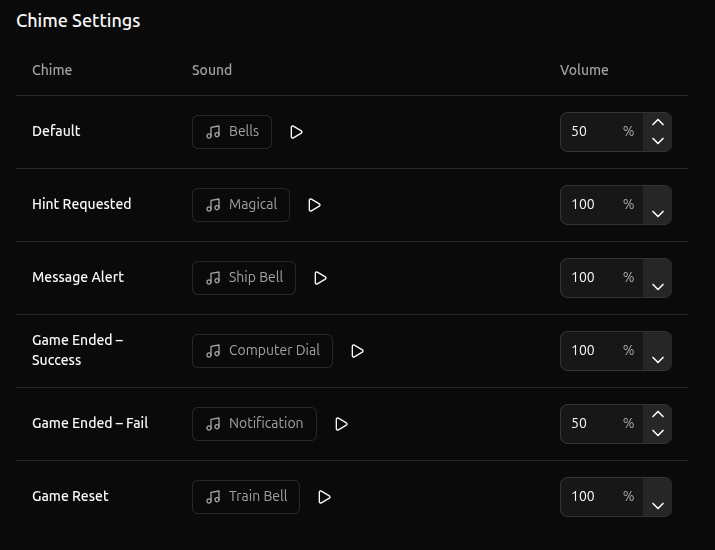
  • Alert chime library, to easily assign a unique chime sound for games under each game name in settings

  • Clicking on the metrics next to the signed in users name will show metrics for people clocked in today, not the whole staff.

Point of Sale:

  • Resova games that are not mapped to a Drawbridge story will be listed in Point of Sale settings. If things aren’t mapped correctly, revenue numbers may not be accurate.

Paycom:

  • Employees will be filtered to only those who are clocked in for the sign in dropdown.

COGS:

  • On the GM page, you can now slide down the current task panel to show all active scenes.

Bug fixes:

  • Fixed max precipitation units always showing in metric units

  • When I Work location filtering for multi-store units

July 7th, 2025

New

Improved

Fixed

Updates to timed resets, daily task organization, and more information during debriefs.

Timed Resets

Since every venue seems to do resets a little differently, we’ve broken out resets into 2 pieces, Game Control and Room Reset. Game control refers to the cycle or state change in a game controller like M3 or COGS. Room reset refers to the physical game and props in your venue.

By splitting these into 2 categories, anyone can time a reset through Drawbridge. There’s no need to press a button in the room to start the timer and the game can be cycled at any point without affecting the timed reset.

Here is how resets work now:

  1. Use the clock icon to start and stop your reset timer. You can pause the time by tapping the clock again. This clock shows up on the overview, game mastering, and hosting screens.  

  2. In the reset process, whenever you need to reset the game controller, you do that by clicking the box that says Game Control. Once the controller resets and is ready for the next game, it turns green.  

  3. When the physical reset is complete, click Room Reset. The entire game is now ready for the next game and the card disappears from Needs Reset once both items are completed. This will stop the timer since the game is fully reset.

Here’s a video if you’d like to share this information with staff quickly.

Daily Tasks

Daily Tasks now appear in the clipboard menu and are checked off there. There is no longer a tab on the sidebar menu for Daily Tasks.

Daily Tasks can now be nested and reorganized! They can also be assigned to multiple days and have descriptions. All configuration of tasks now occurs in General Settings. More info on configuring tasks can be found here.

Debriefing

Staff recommendations link - adds a pin to hosting page with a qr code

  • QR code will link to whatever is placed under Employee Recommendations in Employee Settings

  • Our staff created a list of nearby restaurants and activities on Google Maps that we linked here for any groups looking for local suggestions. Here’s what it looks like.

Game Highlights

In the needs debrief column, clicking on the star below a groups escape time gives session stats from their game:

These highlights can add to conversations post game. For this group, we could mention they were only 13 minutes off the record for this game and they were 3 minutes faster than the average group.

Other icons may appear:

  • A birthday cake if the group is celebrating - a reminder to say ‘happy birthday’ again as they leave or take a photo

  • A star if they set an escape time record for the last 30 days - an opportunity to congratulate them

Management

If employees scheduled today have open training tasks, they’ll appear in the clipboard menu under training. Upon login, each employee will also be alerted to open training tasks.

You can now attach screenshots to red shield reports to further explain whatever issue is occurring.

Current hours per game highlights staffing as green if within range, yellow if under, and red if over target hours. Target staffing hours per game are set under incentives in employee settings (we use 1.2).

Settings

Auto logout after inactivity

  • In settings, navigate to employee settings and then to auto logout. If you check the box, you can select a number of minutes before employees will be signed out of Drawbridge. This may help employees from accidentally switching iPads and logging actions under the wrong name.

Schedule helper graphs in configurable currency

  • Event bookings graph will take the event price threshold from settings

New Integrations

COGS: Full Game Control Integration

  • Realtime sync of COGS shows, scenes, text hints, audio hints.

  • Track hint usage, objective completion times, utilize full Drawbridge booking lifecycle management with COGS games.

  • Embedded gamemastering COGS window alongside cameras and Drawbridge displays.

Buzzshot:

  • Drawbridge will autofill game master name, success or failure, and escape time after a game completes

  • Sync waivers and upcoming games

Shiftie: Full Timekeeping Integration

Digitickets: Full Bookings Integration

Miscellaneous Fixes

  • Fix lobby camera preview 404 error

  • Ensure reordering cameras does not impact detection mappings

  • Weather measurements use correct localization units (mm/inch)

  • Overview games metrics use correct localization units (dollars/euros/gbp)

  • Overview games metrics showing incorrect times in certain timezones

  • Game statistics scrollbar height not showing last row of data

  • Many small UI tweaks to support more device sizes, colors showing correctly, component spacing

  • Add When I Work location filtering

  • Ignore Mythric hint counter to ensure translated hint usages are counted properly in Drawbridge

  • No more duplicate test user appearing in login menu

  • Fixed an issue with cameras pausing on iPads when auto-unmute is enabled

June 17th, 2025

New

Improved

Fixed

Pre-Game Checklists

Do you want to make sure the room is fully ready for customers before they walk in and find that something hasn’t been reset properly or materials are missing?

Add a pre-game checklist! This will provide employees a list of items to check before a game is ready to be claimed and run. Once enabled, this will show up on the hosting page:

Icon Library

For more personalization, aside from uploading your own image, we have added a pre-selected icon library to choose from!

Just go to Settings → Select a game → Click on the icon at the top next to the game’s name →Icon Library

You can select an icon and a color for it to use throughout Drawbridge!

Localization

We now support localization! If you want to use an alternate currency, date format, or time format, head on over to settings!

More Rebooking Codes

To support more common rebooking code formats, we now support:

  • NAMErebook%

    • Employee name, rebook, followed by anything

  • XX-NAME

    • Two numbers, a symbol, and employee name

  • rebookNAME% or replayNAME%

    • rebook/replay, employee name, followed by anything

  • rebook-NAME% or replay-NAME%

    • rebook/replay, a symbol, employee name, followed by anything

Other

  • We now offer ClockShark support for our Timekeeping integration

  • Automatically save end summary if game is reset without manual submission

  • Fix daily task user metrics showing maintenance issues

May 13th, 2025

Hellooo new overview metrics! More numbers that make it even easier to forecast out your day. We also added weather information, so you literally get the forecast too ;)

Overview Page Updates

Metrics

  • Hours: Staffing hours worked out of total scheduled hours for the day

  • Hours/Game: Use the arrows to swap between current staffing hours per game vs future

    • The popup shows an hourly breakdown of bookings and staffing hours for the day

  • Games: Games delivered so far out of total bookings today

  • Games Extended: Grouped ‘Games Paused’ and ‘Time Added’ into one metric called ‘Games Extended’

    • More detail about what is happening in games will appear on the menu underneath this metric when clicked

Navigation Bar Additions

  • Weather forecast - gives interesting data about what may be happening throughout the day. Can lead to reports on how weather impacts business.

    • Click to see an hourly forcast

    • Can be configured in Settings → Weather

  • Clicking on the name of whoever’s signed in gives a more specific summary of their day

    • ‘Host’ tab shows resets and times, if games are going in on time, reset errors, and rebookings

    • ‘Gamemaster’ tab shows average hint response time, escape rate, average number of hints sent, props forced, games paused, and time added

    • ‘All’ tab shows daily tasks completed, reviews, and training tasks completed

Additional Features

New Sidebar Page: Goals

  • Set goals around rebookings and reviews for any period of time

  • Compare against previous goals

  • Click on a goal to edit it

Timing Resets from the Hosting/Gamemaster Page

  • When a game is ended in the needs reset column, a white clock will appear. Tapping the clock starts the timer and turns it green. Another press will pause the time and turn it red.

  • This will work to time a reset while the game is in the ended or in epilogue state, but the timer will stop when the story is reset in Drawbridge and moves to idle.

The Game Master page now counts ‘props forced’

  • This will count any prop triggered by the game master during a game, appears in parentheses next to Devices tab

  • Will also be built into reports

Other Updates:

  • Removed revenue on schedule helper graphs

  • Daily Tasks will expire after 7 days, so tasks from Friday can still be completed on Monday, etc.

  • When opening the Resova photo page for a group, Drawbridge will auto-check the ‘did they escape?’ box and autofill the game completion time

  • Integration with WaiverElectronic

  • Show date of last reset in the Training Tracker to alert employees before their reset expires

April 13th, 2025

Quality of life updates for the Training Tracker, Inventory Tracker, and the Hosting Page! Also releasing our first pass at Paycom integration and some other small adjustments.

Hosting and Overview Page

Ever wondered how long a group sat in the lobby before their game started? Well now you know! Also view notes from Resova bookings through Drawbridge.

  1. Track group check-in time to see how long since they arrived

    • This shows up in the menu that pops up once the booking has been claimed

  1. Access booking notes from Resova on the hosting page

    • The hosting page will show a booking has notes by underlining the customer name. Clicking the underlined name brings up a box with the notes from Resova inside. You can also see these in the menu shown after the game has been claimed.

  1. Any Kids Mode games will now have an icon indicator on the hosting and game master page

  2. Games lost will show as 0% escape rate instead of “-” on overview metrics

  3. Fix time added overview metric to show amount of time per game properly

Game Master Page

Small changes that may help increase hint response time!

  1. Add hints inside of alert popup for quick access

    • Brings the hints for the current objective up with the hint alert for easy visualization and fast hint responses! Looks more like the autohint pop-up so there’s an easier transition to using autohint all the time.

  1. You can now send custom hints from the autohint pop-up for fast clue customization!

    • Whatever is queued up in the custom hint box will be a customizable option alongside prewritten clues

Timekeeping Updates

  1. Initial Paycom integration!

  2. Employees with spaces at the end of their name will identify as the correct employee

  3. Fix Optim8 integration deleting timeclock records overnight

Training Tracker improvements

See trainee progress at a glance! Each module name will be color coded depending on how much the trainee has completed. Hover over reset percentage to see which games are still needed to meet 100%.

  1. Colors for module completion:

    • Gray: No tasks completed

    • Yellow: Module in progress (at least one completed)

    • Green: All tasks completed for that module

  2. Show what games have incomplete resets when hovering over reset percentage for an employee

  3. No more digging around in settings! You can now change employee training module assignments directly from the Training Tracker page by pressing the plus button in the ‘assigned modules’ column.

Inventory Management Updates

Include photos and notes on your inventory items!

  1. Add reference images and notes to items on the inventory management page

    • Images appear as a thumbnail that becomes bigger when clicked on. You can add images from a camera roll or take the photo from the device you’re using.

  2. Preserve current inventory page when adding new items

Daily Tasks

  1. Daily tasks notes are now used to “report an issue”

    • This adds items to the handyman punchlist directly from the daily task menu. No more loose notes that may not be seen by anyone.

  2. Daily tasks will be marked as expired on Monday morning for previous week instead of 7 days after.

Game Analytics

  1. Track device activations in game forensics page to verify game ran properly

  2. Make game statistics smarter about determining final puzzle escape rates.

    • Uses second to last objective that has a time/duration set (for the ahead/behind timer). Defaults to second to last puzzle overall if no times are configured. This should improve accuracy for games that have an extra objective at the end.

  3. Add customer zip code logging from Resova integration for analytics on local/tourist skews

March 24th, 2025

New

Improved

Fixed

Goodbye dusty inventory spreadsheet, hello inventory management! At long last, we have released a first crack at inventory management. Easy reordering, reminders when stock gets low, right alongside your daily checklists!


Inventory Management

Head over to the sidebar, and jump right into tracking your venue’s inventory!

  • Add general venue items or room-specific items

  • Get alerted when an item drops below the desired minimum

  • Search by item name, filter by room, and only see below stock items

Your feedback is requested! Did we miss anything? Would you like to access your inventory in a different way or from a different page? Using it in a unique way? Let us know!


Daily Tasks Leaderboard

Who is the rockstar taskmaster? Now we know! Go Maggie!🥳

As you complete daily tasks, your tally will show up in the employee leaderboard for daily tasks.


Detection Feedback

As we are evolving our GameSense technology, we want to ensure that we can best support our existing deployments. To do this, we have added a feedback system to let us know extra context around any edge cases you run into!


Bug Fixes, Bug Fixes, Bug Fixes (and other changes)

  • Add ability to hide revenue from overview metrics (Settings → Point of Sale)

  • Remove notes from daily tasks

  • Fix zoom on primary camera getting stuck when camera leaves primary spot

  • Fix saving cameras not saving all new cameras from fresh install

  • Fix clocked in employee filters showing incorrect people sometimes

  • Always show manually added employees

  • Fix crash for game with 0 second duration


Not as massive of an update as last months’, but has some important core stability improvements and edge-case handling! We have also been working hard on some exciting new things behind the scenes. I can’t yet reveal anything, but big things are on the horizon! 😎